



Why are android games not loading on my phone?
Android phones have become powerful devices for entertainment, communication, education, and gaming. Millions of people enjoy mobile games every day, from simple puzzle challenges to advanced multiplayer adventures. However, sometimes a frustrating problem occurs: a game refuses to open, gets stuck on the loading screen, crashes immediately, or closes without displaying an error message. Understanding why are android games not loading on my phone can help users identify the cause and find a suitable solution.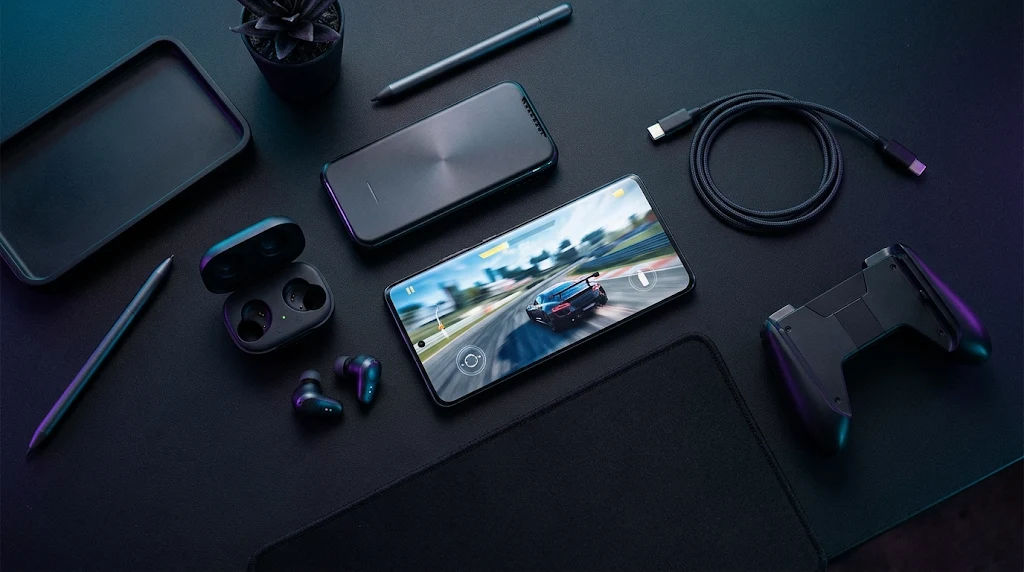
Mobile gaming problems can happen for several reasons. An unstable internet connection, insufficient storage, outdated software, corrupted application files, and device compatibility issues are among the most common causes. Even a relatively new smartphone may experience loading problems when several applications are running simultaneously or when a game requires more resources than the phone can provide.
For people who enjoy different forms of online entertainment, including platforms such as open88.bet, reliable device performance and a stable internet connection are important considerations. However, when an Android game fails to load, the first step should always be identifying the technical issue rather than immediately reinstalling the application.
This comprehensive guide explains the common reasons Android games fail to load, how to troubleshoot these problems, and what users can do to improve their overall mobile gaming experience.
Why Android Games Fail to Load
Android applications depend on several hardware and software components to operate correctly. A game needs sufficient memory, available storage, compatible software, and sometimes a reliable internet connection.
If one of these requirements is missing, the applicati OPEN88 struggle to start.
For example, a game that requires a newer Android version might not work properly on an older device. Similarly, a game that downloads additional content during startup may remain stuck if the internet connection is unstable.
Understanding these basic requirements makes troubleshooting easier.
Temporary Application Errors
Sometimes, a game does not load because of a temporary software problem. Applications can develop minor errors after extended use, particularly when they remain open in the background for long periods.
These errors may prevent the game from displaying its main menu or completing its startup process.
Restarting the application can sometimes resolve the issue. If the problem continues, restarting the smartphone may help refresh system resources and close background processes.
Device Compatibility Problems
Not every Android game supports every smartphone. Developers create applications for particular Android versions, processors, graphics capabilities, and memory requirements.
An older phone might not have the necessary hardware to run a recently released game.
Before installing a game, users should review its minimum system requirements. This information is generally available in the Google Play Store application description.
Common Reasons Android Games Are Not Loading
Several technical issues can prevent Android games from starting correctly. Identifying the exact cause is important because different problems require different solutions.
1. Unstable Internet Connection
Many modern Android games require an internet connection to verify accounts, download game resources, connect to servers, or synchronize progress.
If the connection is weak, the application may remain on its loading screen.
This problem frequently occurs when using congested public Wi-Fi networks or mobile data connections with inconsistent coverage.
Possible solutions include:
-
Check whether other applications can access the internet.
-
Switch between Wi-Fi and mobile data.
-
Restart the Wi-Fi router if necessary.
-
Move closer to the wireless router.
-
Check whether airplane mode is disabled.
-
Try again when the connection becomes stable.
Some games also experience server-side problems. In these situations, the internet connection may work perfectly while the game itself remains unavailable.
2. Insufficient Phone Storage
Storage space plays an important role in Android gaming. Games require room for installation files, updates, downloaded resources, temporary data, and saved information.
When the available storage becomes too limited, applications may fail to update or load correctly.
Large games can require several gigabytes of storage, especially when they include detailed environments, high-quality graphics, and downloadable content.
To address storage problems, users can:
-
Remove applications they no longer use.
-
Delete unnecessary downloaded files.
-
Transfer personal photos and videos to suitable storage.
-
Remove duplicate documents.
-
Clear temporary application cache.
-
Review storage usage in Android settings.
It is also useful to maintain some free storage instead of filling the phone completely.
3. Outdated Android Operating System
Android receives regular software updates that improve security, compatibility, and performance.
Some games depend on newer system features. If a smartphone runs an outdated Android version, certain applications may fail to open or display compatibility errors.
Users can check for available updates through the phone's settings.
The usual process is:
-
Open Settings.
-
Find System or Software Update.
-
Select the available update option.
-
Follow the instructions displayed on the screen.
-
Restart the phone if requested.
Menu names vary depending on the smartphone manufacturer.
Users should install updates through official device settings rather than downloading unfamiliar system files.
4. Corrupted Game Cache
Android applications store temporary information called cache. This information helps games load resources more efficiently and reduces repeated downloads.
However, cached files can occasionally become damaged or outdated.
When this happens, the application might freeze during startup, display unexpected errors, or repeatedly close.
Clearing the cache can help resolve these issues.
How to clear a game's cache:
-
Open Android Settings.
-
Select Apps or Applications.
-
Find the affected game.
-
Open Storage and Cache.
-
Choose Clear Cache.
The exact steps may differ between devices.
It is important to understand the difference between clearing cache and clearing storage. Clearing storage can remove locally saved game information, account settings, or progress that has not been synchronized.
How Background Applications Affect Android Games
Smartphones run several processes simultaneously. Messaging applications, browsers, music players, social media platforms, and other services may consume memory while a game is starting.
When too many applications compete for available resources, the phone may struggle to launch demanding games.
Limited RAM Availability
Random Access Memory, commonly called RAM, temporarily stores information that applications need while running.
Games with detailed graphics and large environments often require considerable memory.
If a smartphone has limited RAM, Android may close background applications to make resources available. In some situations, the game itself may also crash.
Closing unnecessary applications before launching a game can help improve performance.
However, users should avoid installing unfamiliar memory-cleaning applications. Many are unnecessary and may introduce additional performance or security problems.
Battery Saving Restrictions
Battery-saving features can limit background activity, network access, and certain application processes.
These restrictions are useful for extending battery life, but they may interfere with some games.
If a game fails to connect or load properly, users can review its battery settings.
On supported devices, allowing normal background activity for a trusted game may help.
It is also worth checking whether the phone is operating in an extreme power-saving mode.
Google Play Store and Google Play Services Problems
Android gaming depends on more than the game application itself. Several system services help applications install, update, authenticate accounts, and access online features.
Google Play Services and the Google Play Store are particularly important for many Android games.
Google Play Services Errors
Some games use Google Play Services for account authentication, achievements, cloud synchronization, and other features.
If these services are outdated or experiencing problems, a game might not complete its startup process.
Users should check whether Google Play Services and the Play Store are functioning correctly.
Restarting the phone and installing available official updates may resolve temporary problems.
Incomplete Game Installation
An interrupted installation can leave an application with missing or damaged files.
This may happen when the internet connection disconnects during installation or when the phone runs out of storage.
In these situations, the game may appear installed but fail to open.
Users can check the Play Store for available updates. If the installation remains damaged, reinstalling the application from its official source may help.
Before reinstalling, users should confirm that their progress is linked to an account or backed up appropriately.
Game Server Problems and Online Connectivity
Not every loading problem originates on the smartphone.
Online games depend on remote servers that handle multiplayer sessions, account information, matchmaking, and game content.
If those servers experience technical difficulties, players may be unable to enter the game.
Scheduled Maintenance
Developers regularly perform maintenance to improve server stability, introduce updates, and repair technical problems.
During maintenance, users might see messages such as server unavailable, connection failed, or unable to authenticate.
The best option is to wait until maintenance finishes.
Repeatedly reinstalling the application will not solve a server-side issue.
Unexpected Server Outages
Sometimes, online games experience unexpected service interruptions.
These outages may affect specific regions or all players.
Users can check the game's official announcements or support channels for information about service availability.
This is particularly useful when several players report the same loading problem.
Incorrect Date and Time Settings
Some online games use device time information to verify secure connections.
If the smartphone has an incorrect date, time, or time zone, certain authentication processes may fail.
Users should enable automatic date and time settings when available.
This allows Android to synchronize the device clock with an appropriate network source.
Why Some Android Games Crash Immediately
A game that opens and then closes immediately may have a different problem from one that remains stuck on a loading screen.
Immediate crashes can result from incompatible software, damaged files, insufficient memory, or graphics-related errors.
Graphics Compatibility
Modern games use graphics technologies that require suitable hardware and software support.
An older smartphone may struggle with advanced visual effects, detailed textures, and complex environments.
If a game offers graphics settings, reducing visual quality may improve stability.
However, users must first be able to open the game before changing these settings.
Recent Game Updates
Game developers regularly release updates to fix bugs and introduce features.
Unfortunately, an update may occasionally introduce new problems.
For example, a particular version might not work correctly with certain smartphone models.
If the problem begins immediately after an update, users can check official support announcements to see whether the developer has acknowledged the issue.
Avoid downloading unofficial older versions from unfamiliar websites because they may contain security risks.
A Step-by-Step Troubleshooting Guide
When Android games refuse to load, following an organized troubleshooting process can save time.
Instead of changing multiple settings simultaneously, users should try simple solutions first.
Step 1: Restart the Game
Close the affected application completely.
Wait a few seconds and open it again.
This can resolve temporary application errors without changing personal settings.
Step 2: Restart the Smartphone
If restarting the game does not work, restart the entire device.
A smartphone restart refreshes system processes and can release memory used by temporary applications.
After restarting, open the game before launching several other applications.
Step 3: Check Internet Connectivity
If the game requires online access, confirm that the internet connection is working.
Try opening a trusted website or another online application.
If other services also fail, the problem may involve the network rather than the game.
Step 4: Check Available Storage
Open Settings and review the phone's storage information.
If available space is extremely low, remove unnecessary files and applications.
Restart the device afterward and try launching the game again.
Step 5: Clear the Application Cache
Open the game's application settings and clear its temporary cache.
This may remove damaged temporary files without deleting the application's main data.
Step 6: Install Available Updates
Check for updates to:
-
The Android operating system.
-
The affected game.
-
Google Play Services.
-
Google Play Store.
Official updates often improve compatibility and fix known problems.
Step 7: Reinstall the Game if Necessary
If other solutions fail, reinstalling the game may help.
First, confirm that important progress is synchronized with an account or backed up.
Then uninstall the application and download it again through the official Google Play Store or another authorized distribution source.
How to Prevent Android Games From Having Loading Problems
Preventive maintenance can reduce the chances of experiencing repeated gaming problems.
Although no smartphone is completely free from software errors, simple habits can improve reliability.
Keep Android Software Updated
Regular updates help maintain application compatibility and improve system security.
Users should check for updates periodically and install official releases when appropriate.
Maintain Sufficient Storage
Avoid filling the smartphone's internal storage completely.
Keeping enough available space allows Android and installed applications to manage temporary files and updates more effectively.
Download Games From Trusted Sources
Unofficial application files may contain modified code, damaged resources, or unwanted software.
Downloading games through recognized stores reduces these risks.
It also makes receiving official updates easier.
Avoid Overloading the Smartphone
Running numerous demanding applications simultaneously can affect gaming performance.
Close applications that are not needed and allow the phone to manage its memory normally.
Monitor Device Temperature
Smartphones generate heat while running demanding applications.
If a device becomes excessively hot, Android may reduce performance to protect its components.
Allowing the phone to cool down before continuing can help prevent performance-related problems.
Avoid covering the phone during use or exposing it to direct sunlight for extended periods.
Special Considerations for Older Android Phones
Older smartphones can experience more gaming problems because their hardware and software may not support modern applications.
A game that runs smoothly on a newer phone may perform poorly on a device with limited RAM, an older processor, or an outdated graphics system.
Choose Compatible Games
Before downloading a game, review its minimum Android version and hardware requirements.
Lightweight puzzle games, card games, and simple arcade applications may work better on older devices than demanding three-dimensional games.
Reduce Unnecessary Features
If a game provides adjustable graphics settings, selecting lower-quality textures or simpler visual effects can reduce hardware demands.
Users should also close unnecessary applications and maintain sufficient storage.
Understand Hardware Limitations
Software updates cannot turn an older processor into a newer one.
If a game requires hardware that a phone does not support, troubleshooting may not solve the compatibility problem.
In that situation, choosing a compatible game is usually the most practical option.
When Should You Contact Game Support?
Sometimes, normal troubleshooting methods are not enough.
If a game continues failing after restarting the phone, checking connectivity, updating software, and clearing the cache, contacting the developer may be appropriate.
Provide useful information when reporting the problem.
This can include:
-
Smartphone manufacturer and model.
-
Android operating system version.
-
Game name and installed version.
-
Approximate time the issue started.
-
Any error message displayed.
-
Troubleshooting steps already attempted.
Avoid sharing passwords, verification codes, or other confidential account information.
The developer may identify a known compatibility issue or provide instructions for a specific device.
Conclusion
Android games may fail to load for many different reasons, including unstable internet connections, insufficient storage, outdated software, corrupted cache files, limited RAM, and server interruptions. Although these problems can be frustrating, most common loading issues can be investigated through a few straightforward troubleshooting steps.
The most effective approach is to identify the source of the problem before making significant changes. Restarting the application, checking the internet connection, freeing storage space, clearing temporary cache, and installing official updates are useful starting points.
Users should also understand the limitations of their smartphones. Older devices may not support demanding games, while newer applications may require updated Android software and additional resources. Choosing compatible games and maintaining the phone properly can help prevent repeated problems.
Online gaming also depends on external services. A game may fail to load because its servers are undergoing maintenance or experiencing technical difficulties. In such situations, checking official announcements is more useful than repeatedly reinstalling the application.
For a better overall mobile gaming experience, keep your device updated, download applications from trusted sources, maintain sufficient storage, and avoid unnecessary background activity. If a problem continues despite these efforts, the game's official support team may provide more specific assistance.
Ultimately, understanding why Android games are not loading makes it easier to choose the right solution. With regular maintenance, sensible troubleshooting, and attention to device compatibility, users can enjoy a more reliable and convenient Android gaming experience.